
Skip to content
Ricoh
Print Solutions

Document Scanners

Desktop and high-volume document scanners — Ricoh ScanSnap and Fujitsu fi-series — that turn paper into searchable, indexed records.

The challenge

Paper still runs critical processes — even in Microsoft 365 organisations.

AP invoices arrive on paper or as PDFs. Customer contracts get signed in pen. Government forms come in physical-only. Until that paper is captured, indexed and searchable, the downstream automation can't happen. Most Pacific organisations have boxes of unstructured paper that should be in their DMS — but the digitisation project keeps getting pushed because the scanner is the bottleneck.

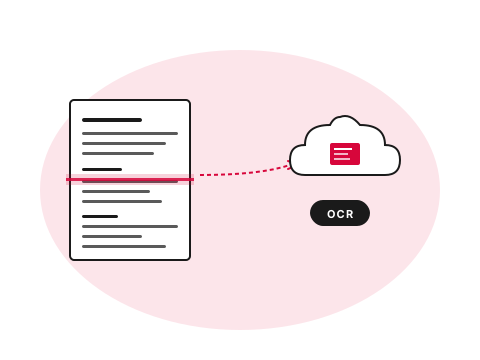
Paper document being scanned and routed to a cloud file
  • What

    What are business scanners?

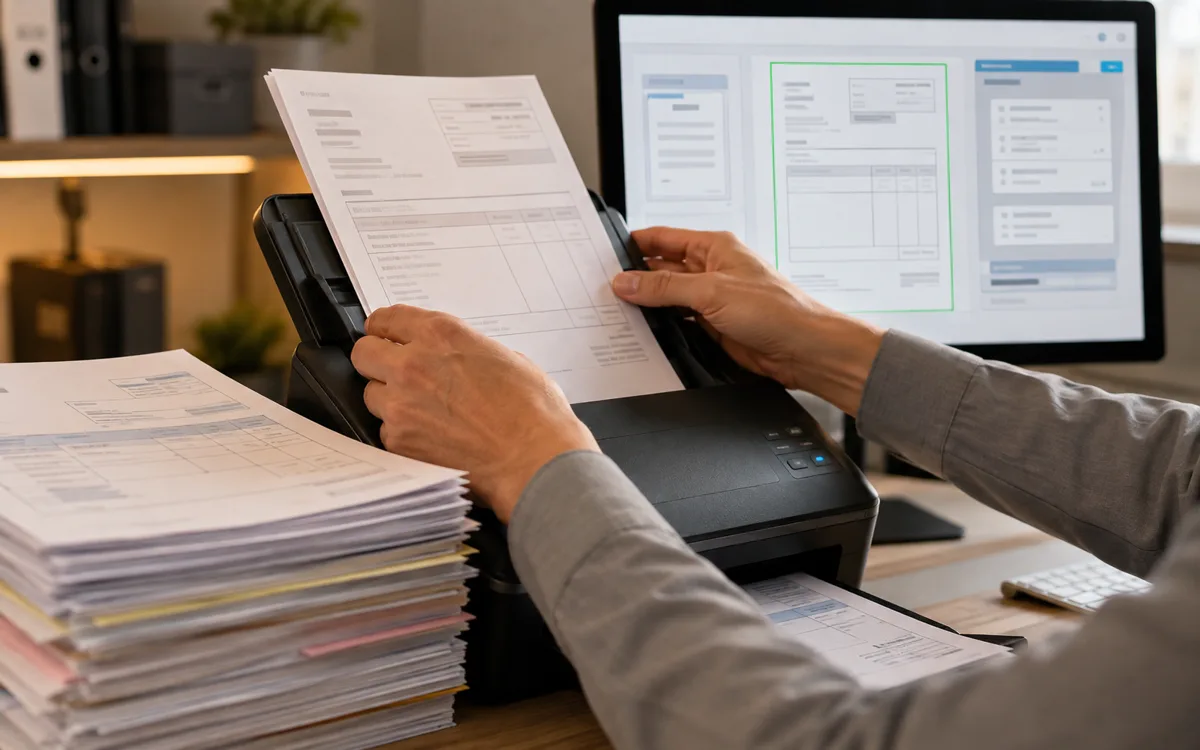
    Production-grade document scanners — desktop ScanSnap units up to 100ppm fi-series machines — with automatic feeders, OCR, classification and direct routing into Microsoft 365, SharePoint or document management platforms.

  • Why it matters

    Paper still bottlenecks the workflow

    Invoices, contracts, government forms and customer correspondence — until they're digitised and indexed, downstream automation can't happen. Most organisations have boxes of records that should already be in their DMS.

  • How Ricoh fixes it

    We size, install and route the capture

    Scope the volume (archive bulk vs daily inbound vs mobile field), pick the scanner, configure routing into your existing cloud or DMS, supply consumables and service on contract.

    Browse the scanner catalogue
How we help

Our approach.

Whether you have a backlog of historical files to digitise, or a daily flow of forms, invoices and contracts to capture in real time, the right scanner is the difference between a digitisation project that finishes and one that stalls indefinitely. We supply and support the Ricoh ScanSnap and Fujitsu fi-series ranges — the de facto standard for business document capture across the Pacific — alongside the document management platforms that consume the output.

Capabilities

What's included.

  • ScanSnap and fi-series

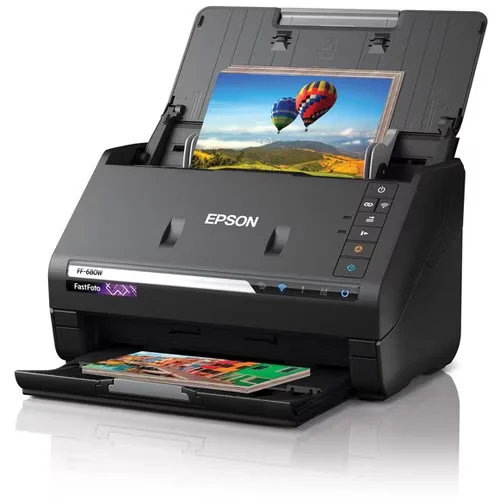
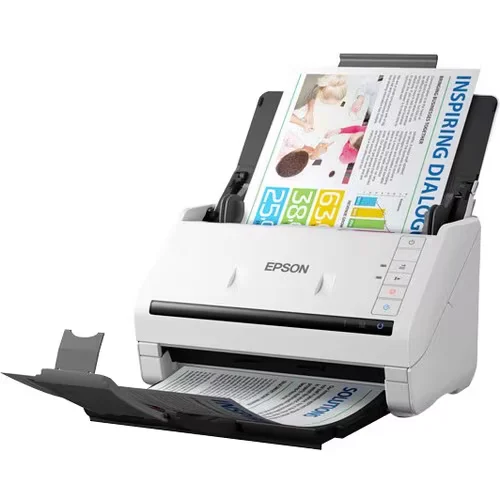
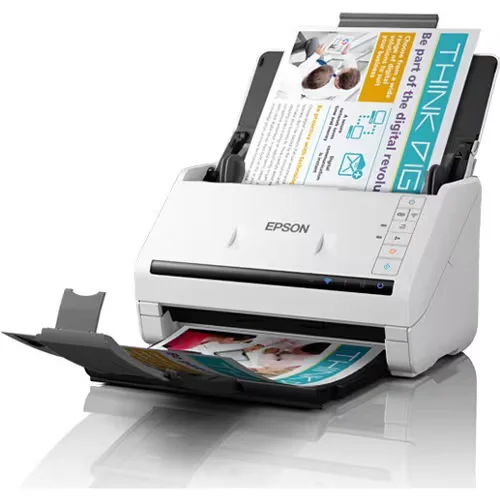
    Desktop ScanSnap for small offices and personal workstations; high-volume fi-series for shared scan stations and central digitisation rooms.

  • OCR and intelligent capture

    OCR and intelligent capture

    Automatic text recognition, document classification (invoice / contract / form) and metadata extraction — ready to feed downstream workflows.

  • Microsoft 365 ready

    Out-of-the-box integration with OneDrive, SharePoint, Google Drive, Dropbox or any network folder.

  • Records-compliant output

    Records-compliant output

    Audit trails, encrypted file output and retention-policy support for regulated record-keeping.

  • Mobile and remote capture

    Mobile and remote capture

    Compact ScanSnap models for sales teams, technicians and remote workers — sync straight to the cloud from anywhere.

  • Local supply and service

    Local supply and service

    Consumables, service kits and replacement units stocked in-country across the four Pacific markets.

Technology partners

Built on platforms we run in production.

We operate on the same platforms global enterprises do — but configured, monitored and supported for South Pacific businesses.

Proof

Real outcomes from Pacific customers.

30 ppm
duplex at 600 dpi, with OCR

A standard ScanSnap iX1600 captures 30 double-sided pages per minute at 600 dpi, automatically rotating, deskewing, OCRing and naming files. A single desktop unit clears a four-drawer filing cabinet in an afternoon — and from then on, the contents are searchable text.

Manufacturer specifications, Ricoh ScanSnap range.

Free resource

The Document Scanners buyer's checklist

A short, vendor-neutral guide that walks South Pacific decision-makers through what to ask, what to compare, and how to scope a successful document scanners project.

  • What to put in the brief — and what to leave out.
  • Red flags in vendor proposals.
  • Realistic budget ranges for Pacific deployments.
Use cases

How customers use this.

  • 01

    Historical archive digitisation

    Bulk capture of accumulated paper records into a searchable archive — typically a 6–12 week project for a mid-sized organisation.

  • 02

    Daily inbound capture

    A scan-and-route station that intakes mail, invoices and forms each morning, with metadata extracted and items routed to the right team.

  • 03

    Mobile field capture

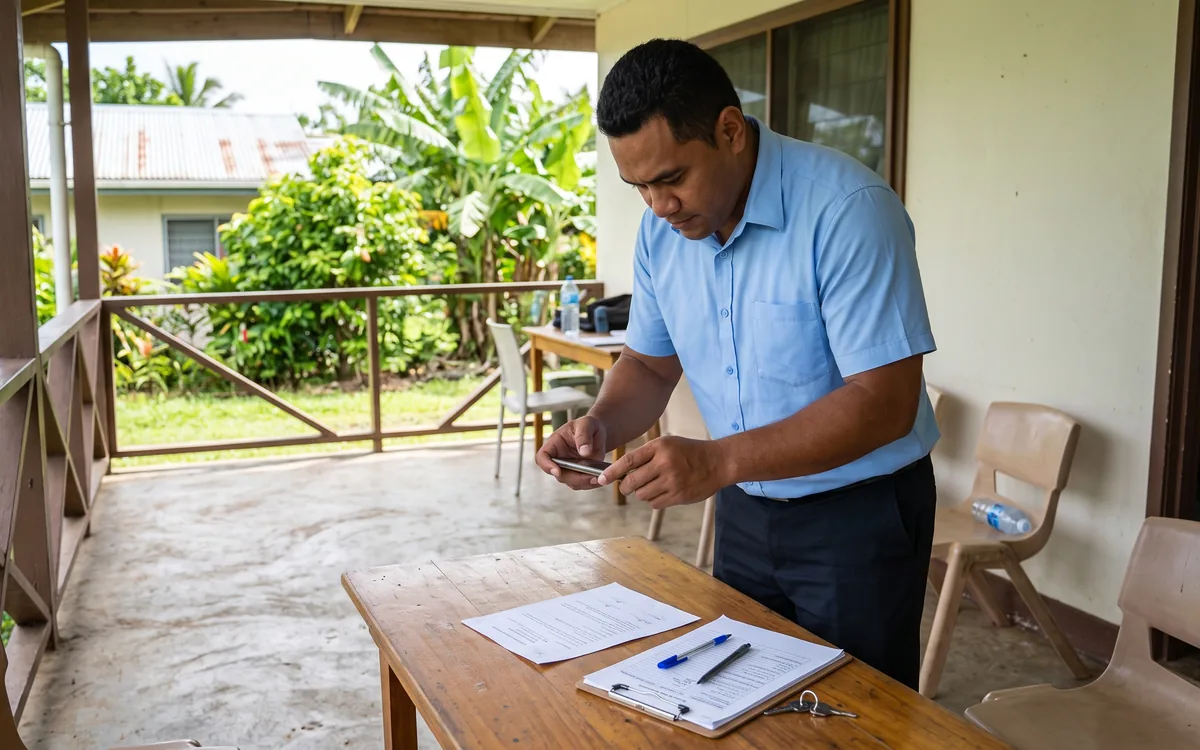
    Sales, audit and inspection teams scanning forms on-site, syncing immediately to the cloud — no paper lost between site and office.

FAQ

Frequently asked questions.

The questions South Pacific decision-makers ask most often before they engage on document scanners.

  • What is the difference between a desktop scanner and a production scanner?

    Daily volume and feeder reliability. A desktop scanner — typically a Ricoh ScanSnap or comparable — handles 25 to 50 pages per minute and is rated for a few hundred pages per day. It is the right tool for a single user digitising invoices, contracts and forms as they arrive. A production scanner (Fujitsu fi-series, Kodak Alaris) handles 60 to 130 pages per minute, includes ultrasonic double-feed detection, processes mixed paper sizes and weights in one stack, and is rated for tens of thousands of pages per day. It is the right tool for a central reprographics team or for the archive digitisation projects where someone is scanning paper full-time. We pick against the actual daily volume rather than buying the largest device by default.

  • Do we need a scanner if our MFP can already scan?

    For occasional scanning, the MFP is usually fine — a few documents a day, walk-up access, scan to email or to SharePoint. For repeated batch scanning where someone is digitising stacks of documents through the day, a dedicated scanner is materially faster (no waiting for the MFP, no walking to the device for each batch, faster paper handling). The break-even is roughly 50 pages a day per user. The other reason to add a dedicated scanner is reliability — the document feeder on an MFP is shared across the whole office and tends to be the part most likely to jam under heavy use. Putting heavy-volume scanning onto a dedicated device extends the life of the MFP and reduces helpdesk tickets.

  • How does OCR (searchable PDF) work and is it worth it?

    OCR (optical character recognition) runs in the scanner driver or in the document management platform — it reads the text on the scanned page and embeds it as a searchable layer behind the image. The visible result looks identical to a normal PDF; the invisible difference is that you can search the document for any word it contains and the search finds it. For any organisation that needs to find old documents quickly — invoices by supplier name, contracts by clause, customer correspondence by reference — OCR is the difference between a digital archive and a useful digital archive. Modern scanners do this automatically as part of the scan; the OCR cost is bundled into the device price rather than being an add-on.

  • What is the difference between Ricoh ScanSnap and Fujitsu fi-series?

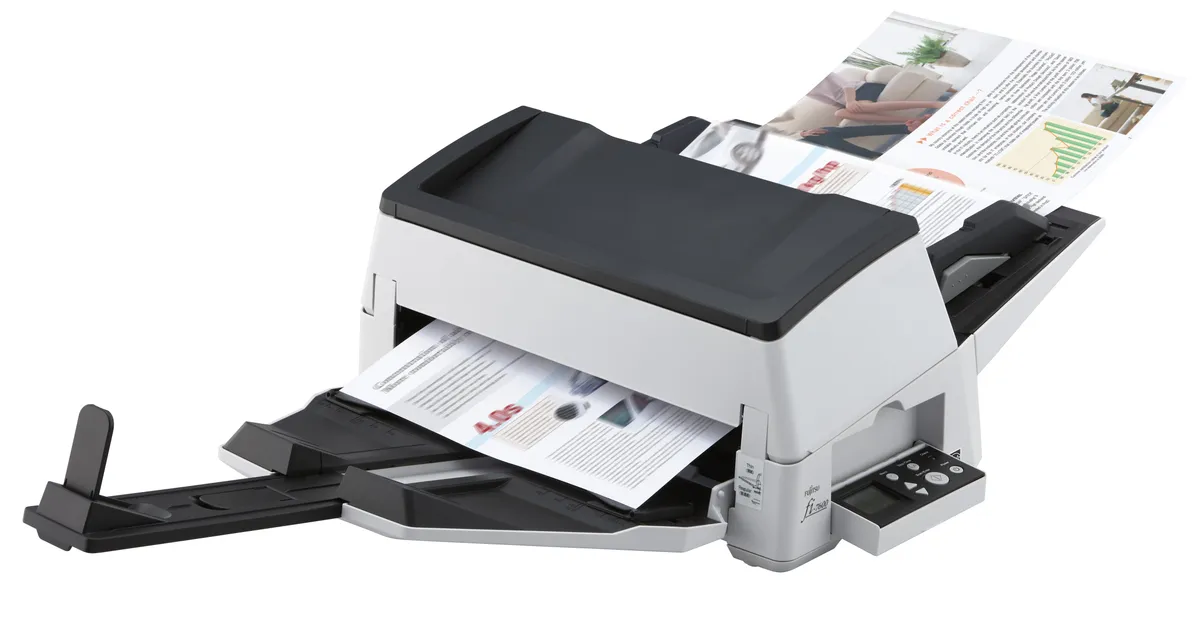
    ScanSnap is designed for individual or small-team use — desktop form factor, one-touch scanning to common destinations (email, OneDrive, SharePoint, accounting platforms), excellent driver experience for non-technical users. The fi-series is Fujitsu's production line — higher throughput (up to 130 pages per minute on the fi-7900), heavier-duty paper feeders, advanced image processing for damaged or mixed media, and licensed software for archive workflows. They share the same engineering DNA (PFU, the Fujitsu subsidiary, makes both) but target different use cases. We supply both and choose against the actual workload.

  • Can scanners integrate directly with Microsoft 365, SharePoint and document management systems?

    Yes. All current ScanSnap and fi-series devices include native one-touch destinations for Microsoft 365 (OneDrive, SharePoint, Outlook, Teams), Google Drive, Dropbox, common accounting platforms (Xero, MYOB, QuickBooks), and document management systems through standard APIs. Custom destinations and approval workflows can be added through Power Automate or the document management platform's own integration. The destination is configured during install — once set up, the user authenticates once and the scans land in the right place from then on. No drag-and-drop, no manual upload, no per-document filing.

  • How long does it take to digitise a paper archive?

    Throughput depends on the equipment and the condition of the documents. On a Fujitsu fi-series production scanner, a single operator can process around 5,000 to 15,000 pages per day depending on document quality, paper preparation work (removing staples, repairing damaged pages, sorting batches) and the level of metadata indexing required. For a typical filing-cabinet of 50,000 pages, that is roughly 5 to 10 working days of focused scanning. We typically run archive digitisation as a fixed-fee project with the scanner provided for the duration, pre-sort and indexing work done on-site, and the digital output delivered into your document management system at the end.

  • What does a business scanner cost?

    A ScanSnap desktop unit suitable for individual or small-team daily scanning lands roughly NZ$700 to NZ$1,500 depending on model. A higher-volume fi-7180 sits around NZ$3,000 to NZ$5,000 fully installed. Production fi-series for central reprographics scale from NZ$8,000 upward for the larger models. Consumables (rollers, pads) on a managed-print contract are usually included; on standalone purchases they are an annual line item of a few hundred dollars per device. For archive digitisation projects we typically supply the scanner as part of the project fee rather than as a standalone purchase, so the spend is structured against the actual one-off workload.

Ready to simplify your South Pacific workplace?

Book a no-obligation conversation with a local specialist. We'll listen first and only recommend what actually helps.