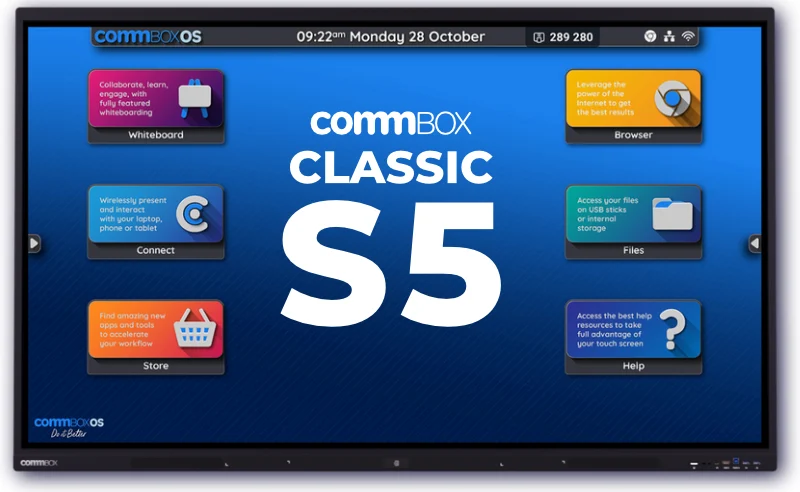
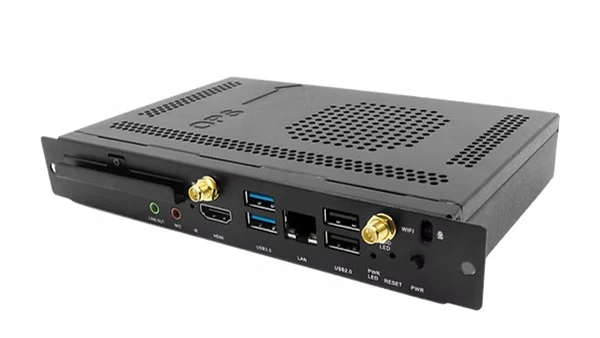
The CommBox Classic OPS PC — i5 (W11 Pro) is an OPS-format slot-in computer designed to plug straight into the OPS slot of CommBox interactive touchscreens and commercial displays. It turns the screen into a large-format Windows 11 Pro PC with no second box, no extra cabling, and no extra power outlet — one cable feed, one device to manage, one warranty to track.
This is a sales accessory, not a stand-alone product: the slot-in PC only works inside a host CommBox display with an OPS slot (Classic S4, Classic S5, Neo, Intelligent Display Gen 2 and similar). The CBS3015 SKU is the NZ-channel variant with Windows 11 Pro pre-loaded — i.e. the licence is included and Microsoft does not need to be purchased separately, which is the difference between this SKU and the base CBOPSI5 (“no OS” / customer-supplied licence) listed on CommBox’s manufacturer page.
Where it fits
- Microsoft Teams Rooms / Zoom Rooms in-panel deployment — Drop the slot-in PC into a Classic S5 or Classic S4 OPS slot, install Teams Rooms certified software, and the screen becomes a complete certified meeting-room solution with no separate room PC under the table.
- Classroom Windows teaching environments — Boots the screen into Windows 11 Pro for teachers running Microsoft 365 Education, ClickView, OneNote, ActivInspire or other Windows-only teaching software — alongside the host display’s native Android environment when needed.
- Senior-leadership briefing rooms — Microsoft 365 + Windows 11 Pro on a fixed in-room device — repeatable login, fleet-managed, no BYOD reliance for sensitive content.
- Kiosk and customer-facing display — Pair with a CommBox Customer Facing Display for a turnkey Windows-based kiosk — locked-down profile, signed software, full Microsoft Intune control.
- CommBox Classic OPS PC — i5 (W11 Pro) module
Features
- Turns any compatible CommBox display into a native Windows 11 Pro PC
- 12th Generation Intel Core i5 with Intel Iris Xe Graphics
- Windows 11 Pro pre-loaded (CBS3015)
- 8 GB DDR4 RAM, 256 GB SSD
- 4K @ 60 Hz video output to the host display
- Built-in Wi-Fi module + Ethernet via host display
Specifications
General
- Manufacturer
- CommBox Pty Ltd (Australian-designed)
- Product
- Classic OPS PC — i5 (Windows 11 Pro)
- NZ SKU
- CBS3015
- Equivalent manufacturer SKU
- CBOPSI5 (base hardware) + Windows 11 Pro licence bundle
- Form factor
- OPS (Open Pluggable Specification) slot-in module — JAE TX25 80-pin connector
- Generation
- Gen 12 (current — "CommBox Slot-in PC OPS Gen 12 Spec Sheet 2024")
- Sister SKU
- CBOPSI7 — i7 variant with 16 GB RAM (step up for heavier workloads)
Compute
- Processor
- 12th Generation Intel Core i5
- Graphics
- Intel Iris Xe Graphics (integrated)
- System memory
- 8 GB DDR4
- Internal storage
- 256 GB SSD (solid-state drive)
- Maximum display resolution
- 4K @ 60 Hz (3,840 × 2,160 at 60 frames per second) to the host display
Software
- Operating system (CBS3015)
- Microsoft Windows 11 Pro 64-bit — licence included, pre-installed
- Domain / device management
- Standard Windows 11 Pro features — Active Directory, Microsoft Intune (MDM), Azure AD join, BitLocker, Group Policy
- Office software
- Not included — Microsoft 365 / Office to be procured separately by the customer
- Antivirus / EDR
- Microsoft Defender included with Windows 11 Pro; third-party AV / EDR supported
Connectivity & Interfaces
- Connection to host display
- JAE 80-pin OPS connector (industry-standard) — carries power, video, USB and serial control between the OPS module and the host display
- Wi-Fi
- Built-in Wi-Fi module (pre-installed; band coverage per CommBox spec sheet)
- Ethernet
- Inherited from host display LAN port (10 / 100 / 1000 Mbps)
- Additional ports (on the OPS module itself)
- USB, LAN and HDMI ports per CommBox marketing copy — exact count and version not published on the publicly accessible spec sheet. Confirm at quote if customer is specifying.
- Audio
- Audio in / out passed through the host display speakers and audio jacks
Power & Environment
- Power supply
- Drawn directly from the host display through the OPS connector — no separate AC outlet required
- Standby behaviour
- Sleeps and wakes with the host display
- Power consumption
- Not published on the publicly accessible spec sheet — added to the host display's draw when fitted (S5 datasheet shows ~+ 185 W with OPS fitted)
- Operating environment
- Designed to operate within the same environmental envelope as the host display (typically 0 °C to 40 °C, 10–90% RH non-condensing)
Physical
- Form factor
- OPS module — slides into the OPS slot of a host CommBox interactive or commercial display
- Dimensions / weight
- Per OPS industry standard — exact module dimensions and weight not published on the publicly accessible spec sheet; confirm at quote if needed for crating or freight estimation
- Installation
- User-installable — slide module into the OPS slot, secure with thumb screws. No separate AC connection required.
Compatibility
- Host display requirement
- CommBox interactive or commercial display with an OPS slot
- Recommended host size
- 65" and above (per CommBox manufacturer guidance)
- Verified compatible models
- Classic S4 (65", 75", 86", 98"), Classic S5 (65", 75", 86", 98"), Neo (65", 75", 86"), Intelligent Display Gen 2
- Use case
- Windows compute in-panel for Microsoft Teams Rooms / Zoom Rooms certification, Windows-based teaching software, digital signage hosting, kiosk applications
Warranty & Support
- Standard warranty
- Per CommBox Experience programme (confirm slot-in PC term at quote — typically aligns with the host display's warranty)
- Training
- Unlimited free virtual training (CommBox Experience)
- Support response
- Same-business-day help-desk if logged before 3 pm AEST
- NZ local presence
- CommBox Experience Centre — The Hangar Catalina Bay, 2/2 Boundary Road, Hobsonville, Auckland — +64 9 801 6765